
Classify overview
Classify helps Confluence teams visually classify pages and guide users around permissions and information sensitivity. It lets your organisation label pages with classification levels (for example Public, Internal, Confidential), apply the right view and edit restrictions automatically, and show a clear visual banner so every page reader knows how sensitive a page is.
This documentation is written for the people who use Classify day to day:
- Page editors — classify the pages you write.
- Space administrators — turn classification on for a space and choose its classification levels.
- Confluence administrators — manage the organisation-wide global templates and control which spaces can use the app.
What classification does
Section titled “What classification does”When you apply a classification level to a page, Classify does several things at once:
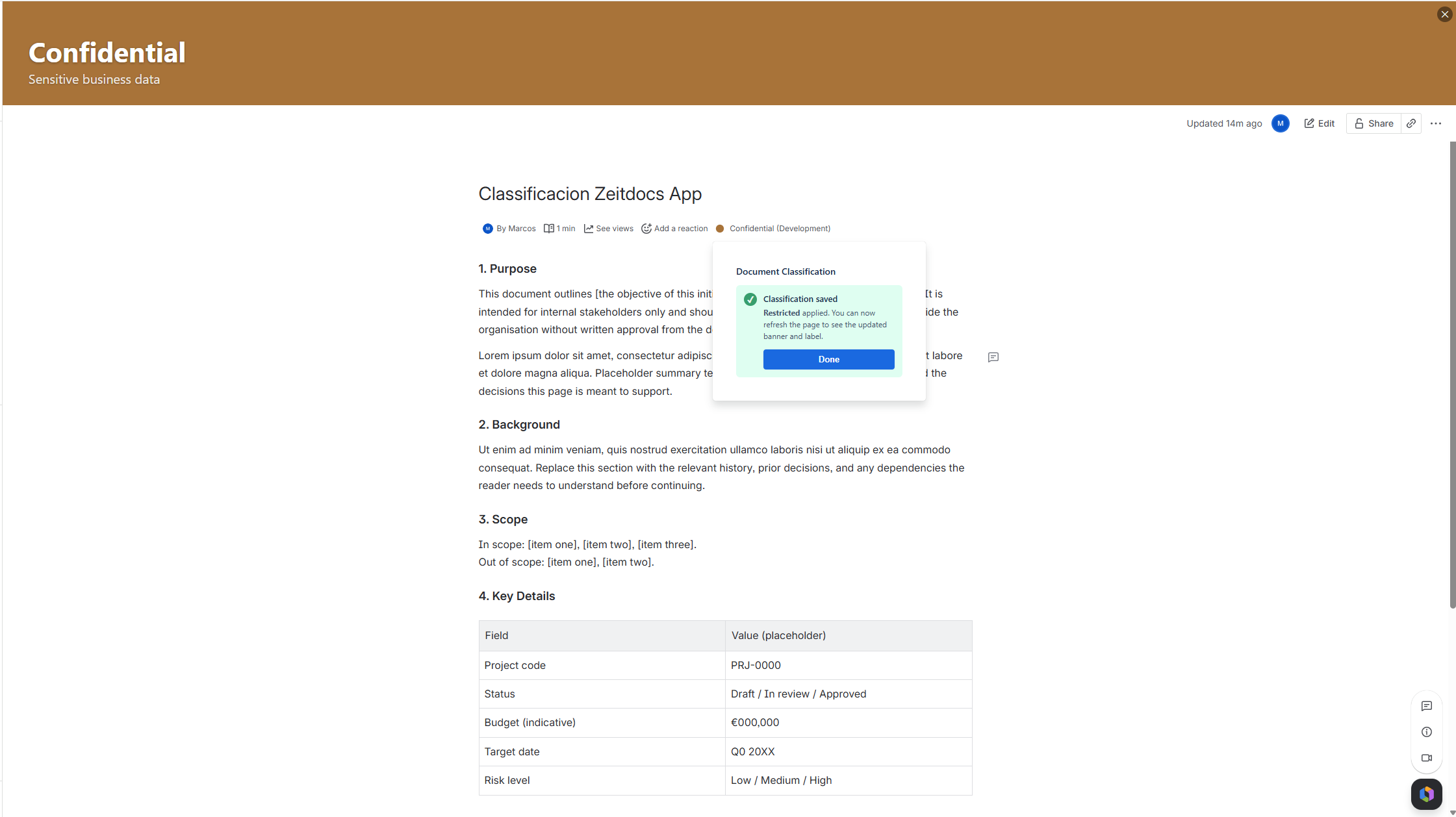
- Shows a visual banner at the top of the page (an image header or a colour band), so readers see the sensitivity first.
- Sets a coloured indicator and label in the page byline, next to the author and date line.
- Applies view and edit restrictions so only the right Confluence groups can see or change the page.
- Adds a label (for example
CONFIDENTIAL) to the page for search and reporting. - Records the classification so it appears in the Classification Report.
All of this happens from one small dialog — the page editor picks a level, and Classify takes care of the rest.
Core concepts
Section titled “Core concepts”- Classification level — a named sensitivity tier (for example Internal) with a colour, an optional banner image, a label, and the Confluence groups allowed to view or edit pages at that level.
- Global template — a reusable set of classification levels defined once by a Confluence admin and applied to many spaces. Keeps classification consistent across the whole site.
- Space configuration — the set of classification levels active in one space. Usually copied from a global template, but it can be edited locally afterwards.
- Visual banner / page header style — how a level is shown at the top of a classified page: an image header, a colour band, or none.
- Permission guidance — the view and edit restrictions Classify applies automatically when a page is classified.
The parts of the app
Section titled “The parts of the app”| Part | Where you find it | Who uses it | Guide |
|---|---|---|---|
| Page byline | The author and date line at the top of any page | Page editors | Classifying a Page |
| Page banner | A header strip at the very top of a classified page | Page readers | Page Banner |
| Space Settings | Space → Classification settings page | Space admins | Space Settings |
| Classification Templates | Apps → Classification Templates | Confluence admins | Global Templates |
| Space Access Control | Inside Classification Templates → Manage access | Confluence admins | Space Access Control |
| Classification Report | A page in the space listing all classified pages | Space members | Classification Report |
Next step
Section titled “Next step”Start with Getting Started.