Classifying a Page
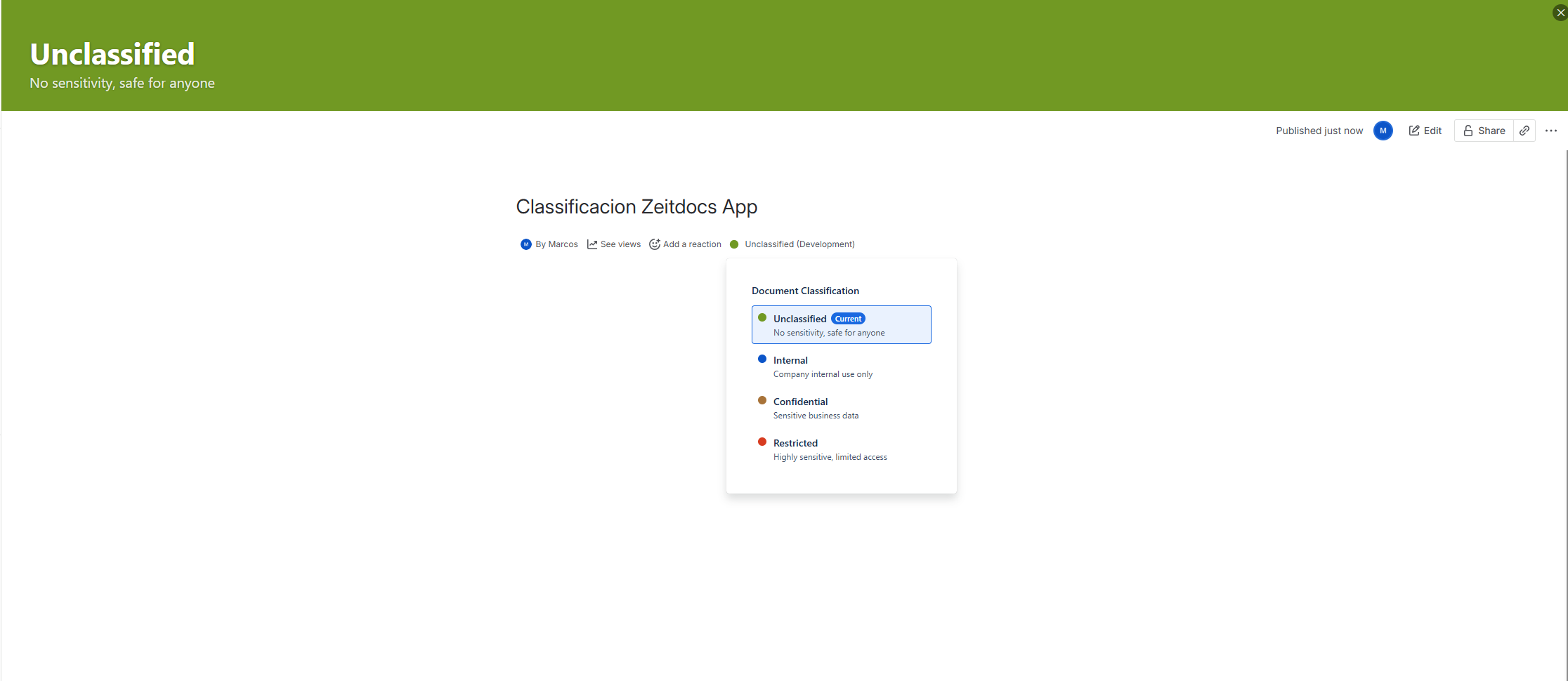
The byline is the line near the top of every page showing who created it and when. When classification is enabled in your space, a Classification item appears there with a coloured dot indicating the page’s current level.
This is the main place where day-to-day classification happens.
Reading the byline indicator
Section titled “Reading the byline indicator”| What you see | What it means |
|---|---|
| A coloured dot and level name | The page is classified at that level. Hover for the level description. |
| A grey or disabled icon | Classification is enabled in the space, but this page is not classified yet. |
| Just “Classification” with no coloured dot | Classification is not available here (disabled, or the space is blocked). |
| ”Classification” with the tooltip “Classification level no longer exists” | The page was classified at a level that has since been removed from the space — see below. |
Classifying or re-classifying a page
Section titled “Classifying or re-classifying a page”- Click the Classification item in the byline.
- The dialog opens showing the available classification levels for your space.
- Click the level you want. Each level shows its colour and description.
- The dialog shows “Saving classification…” — a short, multi-step save. Do not refresh the page yet.
- When you see “Classification saved ✓ — refresh the page now”, click Done and refresh.
What happens when you pick a level
Section titled “What happens when you pick a level”Classify automatically:
- Applies view and edit restrictions to the page using the Confluence groups attached to that level. Afterwards, only people in the allowed groups can view or edit the page.
- Adds a label (for example
INTERNAL) to the page. - Updates the byline dot and the page banner.
- Records the classification in the Classification Report.
Changing the level later cleanly removes the previous level’s restrictions and applies the new ones.
Who can classify a page?
Section titled “Who can classify a page?”You must have edit access to the page. Classify checks this before making any change:
- If you can edit the page, you see the full level picker.
- If you can only view the page, you see a read-only view that shows the current classification but does not let you change it.
- Confluence administrators can classify even restricted pages, matching Confluence’s normal admin override.
This prevents a page reader with view-only access from changing a page’s restrictions.
If the page’s classification level no longer exists
Section titled “If the page’s classification level no longer exists”A classification level can be removed from a space — a space admin deletes it, or an administrator re-applies a global template that no longer contains it. Pages already classified at that level are not changed automatically.
When you open the byline on such a page, Classify tells you:
“This page was classified at a level that no longer exists in this space. Its current label and restrictions still come from that level — choose a level below to update them.”
No level is marked Current, and the byline itself shows a plain Classification item with no coloured dot.
What this means in practice:
- The page keeps the Confluence label and the view and edit restrictions of the removed level. Nothing has been unlocked.
- What the page displays no longer matches a level your space offers, so readers have no reliable indicator.
- Picking any level from the list clears the old label and restrictions and applies the new ones, which resolves it.
If you only have view access, you see the same explanation with a note that someone with edit access needs to re-classify the page.
First time in a space (onboarding)
Section titled “First time in a space (onboarding)”If classification is not yet enabled in your space, the dialog adapts to your role:
- Space administrators see a short onboarding flow: a list of available global templates to preview and apply, right inside the dialog. Pick one and the space is set up instantly (see Space Settings).
- Non-admins see: “Classification is not enabled. Contact your space admin.”
Blocked spaces
Section titled “Blocked spaces”If your Confluence admin has blocked classification for this space, everyone (including space admins) sees:
“Classification is not available in this space…”
No level picker appears, and pages here cannot be classified. See Space Access Control.
- The coloured dot is visible to everyone, but the dialog only lets editors change it.
- Re-classify freely — switching levels is safe and cleans up the old restrictions for you.
- If the banner or dot looks wrong after a change, refresh the page — the byline indicator updates on reload.
Related
Section titled “Related”- Page Banner — the header strip that appears once a page is classified.
- Space Settings — where the available levels come from.
- FAQ